
Appearance
The Editor
The editor has three parts: a slim icon rail, a left sidebar, and the iframe preview filling the rest. The sidebar swaps between three views — the page's sections, the settings for whichever section you've selected, and the site's media library — so the preview keeps the whole width whichever one is open. Pinned at the top and bottom of the section list are edit entries for the site-wide regions — header above the page sections, footer below — which open the same editor scoped to that region.
To try it before buying, open the live demo, or compare plans: every tier ships the same editor.
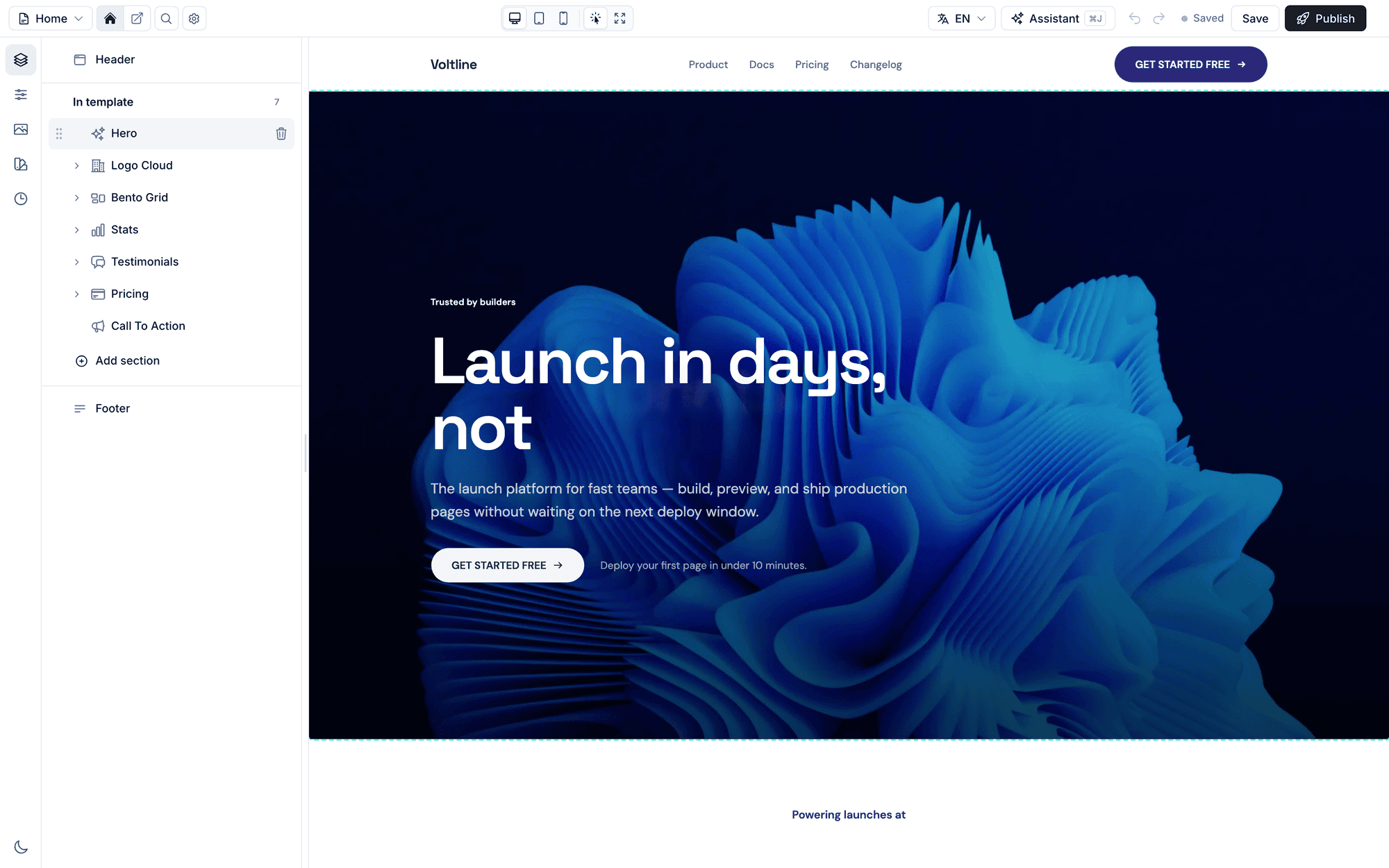
Topbar

- Page / Site dropdowns — switch templates of the current site, or jump to a sibling site owned by the same tenant (multi-site / multi-store setups). Locales are handled by the separate locale switcher below.
- Settings (cog) — a slide-over that manages pages and stores without leaving the editor (see below).
- Command palette (magnifier, or
⌘K) — jump to any page, store, or action by name. - URL pill — shows the live URL of the current page; click-through opens it in a new tab. The home icon on the left toggles "set as homepage."
- Device switcher — desktop / tablet / mobile widths. Mobile and tablet render the preview inside a device frame:
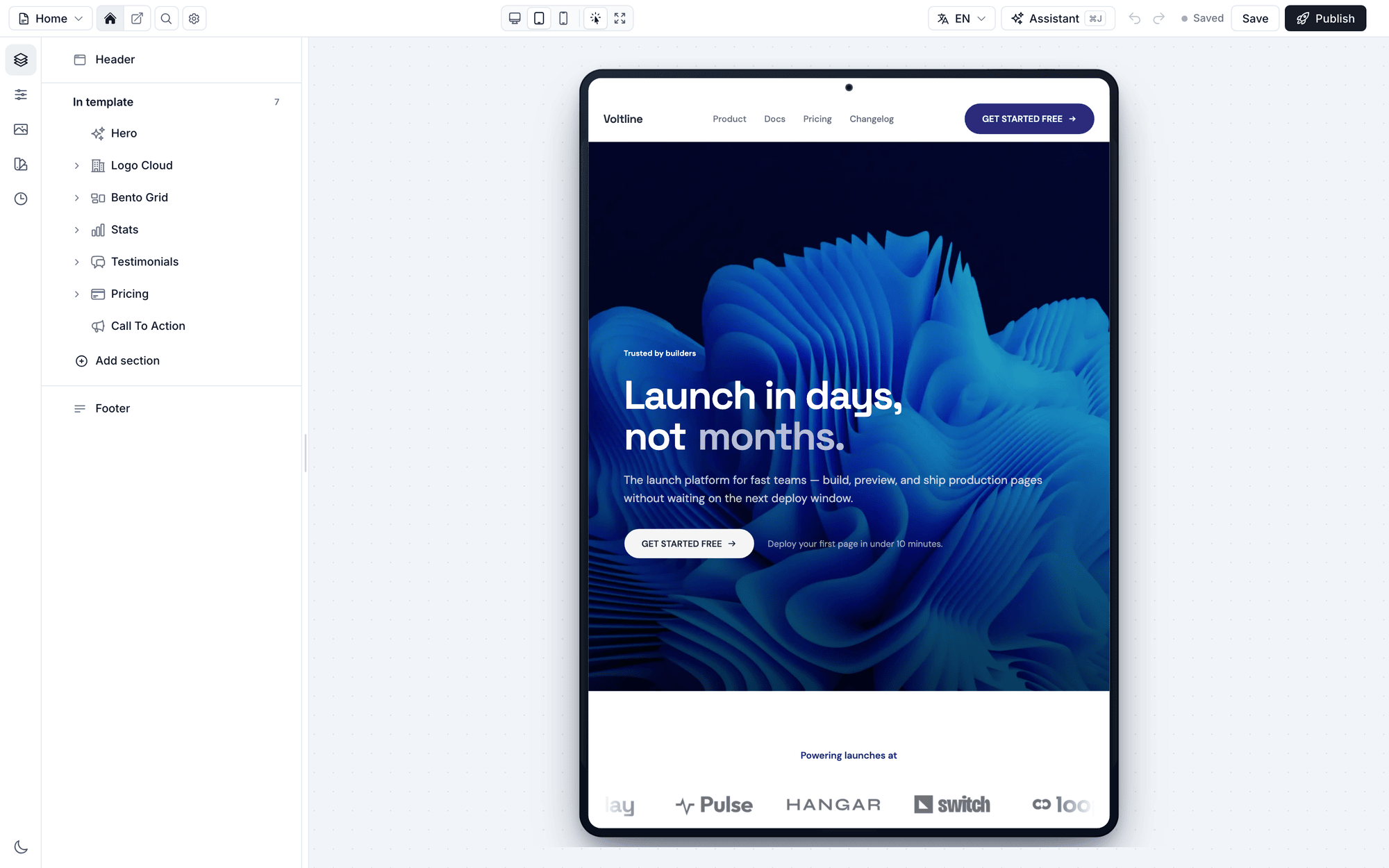
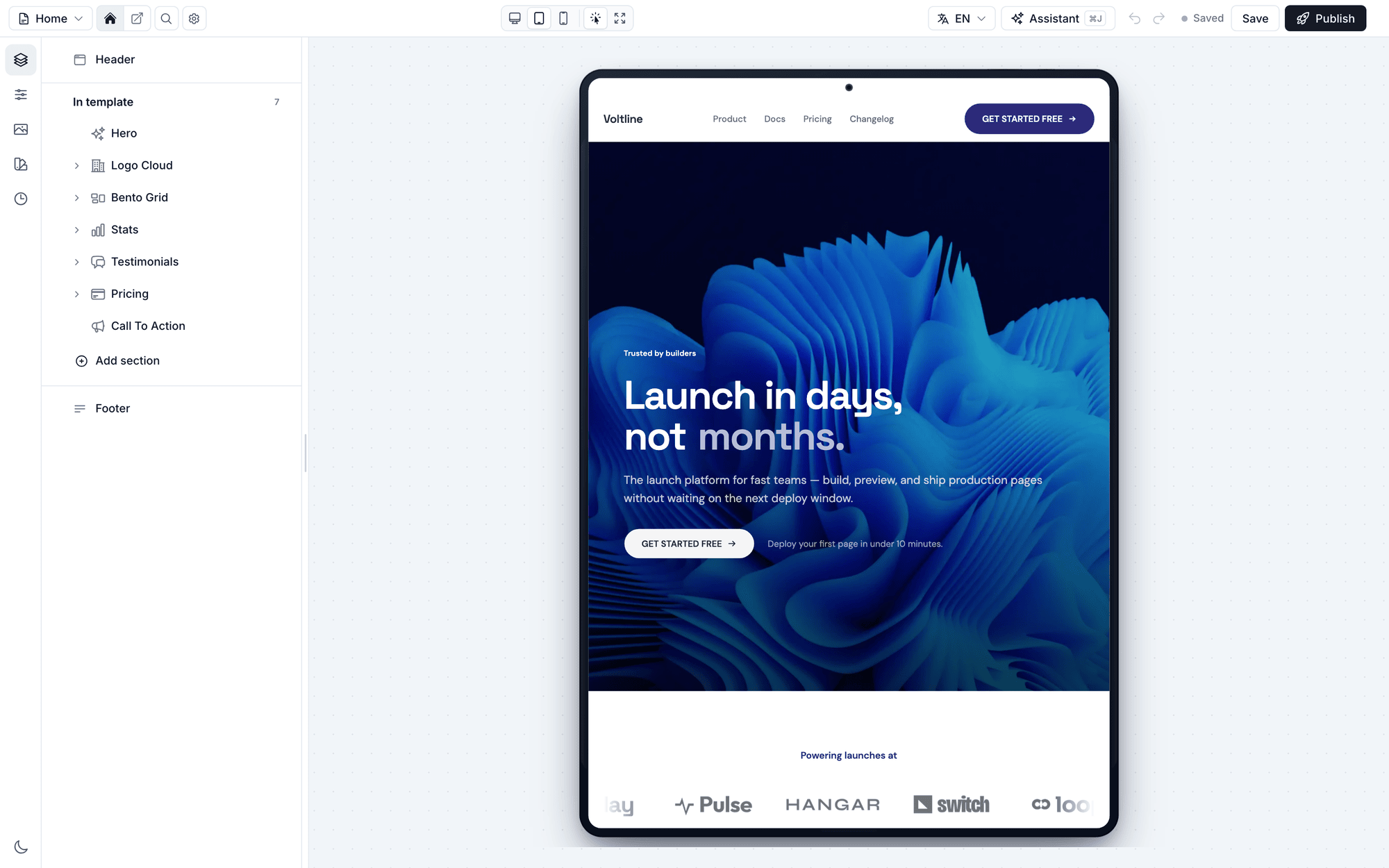
filamentcraft.editor.devices, so you can point them at your own breakpoints.- Locale switcher — on multi-locale sites, a dropdown showing every site locale with a translation-status heading ("2 of 3 translated"), an Empty tag on locales with no content yet, an RTL badge on right-to-left locales, and a Copy content from… action that clones another locale's sections into the current one. Switching away with unsaved changes asks for confirmation first. See Localization.
- Sidebar toggle — show or hide the sidebar, keeping the topbar in place.
- Focus mode — collapses both rails to maximize the canvas.
- Save / Publish / Discard — Save writes a draft revision; Publish promotes it to public; Discard rolls back to the published state.
- Autosave toggle — per user per template, off by default; turning it on is remembered for 30 days. When on, edits are saved to the draft after the
filamentcraft.editor.autosave_msdebounce (default 3000 ms). - Undo / Redo — ring buffer per user per template, 50 steps by default (configurable via
filamentcraft.editor.undo_depth), cache-persisted for 8 hours so a refresh doesn't lose it. - Type on the canvas — click a heading, label or paragraph in the preview and type; Enter or clicking away saves it to the draft (Shift+Enter adds a line break in multi-line fields, Escape cancels). Only plain text and textarea settings are editable this way, the sidebar stays where you left it, and each edit is one undo step. Set
filamentcraft.editor.inline_texttofalseto turn it off. - Ask AI from the canvas — when the AI assistant is available, every section's toolbar in the preview gets a sparkle button. Click it, say what to change ("make the heading shorter"), press Enter, and the assistant edits that section and closes when it's applied.
- Empty pages start on the canvas — a page (or header/footer) with no sections shows an Add section button right in the preview, plus Generate this page with AI when the assistant is available. Visitors never see it; the prompt only renders in the editor.
- Light / dark editor — the sun/moon toggle at the bottom of the icon rail switches the editor chrome between light and dark, independent of the page being edited. The choice is remembered (same storage Filament's own theme switcher uses).
Adding & arranging sections
- Add-section modal — the rail's add button (or the
/shortcut) opens the section catalog. Picking a type inserts it and selects it immediately. - Preset picker — when a section type ships presets, the modal hands off to a preset picker instead of inserting a blank: one click drops a fully designed variant. Built-in sections ship one preset per family — Modern, Editorial, Bold, Elegant. The same picker can restyle an existing section in place.
- Drag to reorder — grab a row's drag handle in the section rail (SortableJS) to reorder; the preview updates without a reload.
Canvas hover toolbar
Hovering a section in the preview draws an outline and a floating toolbar, so sections can be managed directly on the canvas without the sidebar:
- A name chip plus edit, move up / down, duplicate, hide, and delete buttons.
- Move buttons disable at the first/last position.
- Locked sections (
data-fc-section-locked) expose only the name and edit. - The selected section keeps a persistent outline and toolbar.
- Hidden sections don't render in the canvas — their sidebar row keeps an always-visible "show" toggle as the way back.
Scheduling sections
Every section, header and footer sections included, has a Schedule group at the end of its settings with Show from and Show until. Leave either one empty for an open-ended window. Use it for campaigns, seasonal banners and time-boxed announcements.
- The window only applies to the published page. The editor canvas always shows every section, so you can build a campaign before it starts.
- Show until is exclusive: a section set to show until 18:00 is gone at 18:00.
- Replaces swaps a section out for the campaign. Pick the everyday hero on a Black Friday hero, and visitors see the Black Friday hero instead of the everyday one while the window is open. Outside it, the page is back to normal. Nothing else to schedule.
- Preview on start date opens the page in a new tab exactly as visitors will see it when the window opens, replacements included. The same works for any moment with
?at=on the preview URL. - You enter times in Filament's timezone (
FilamentTimezone::set(), the app timezone by default). They're stored as UTC, so the live site switches at the same moment wherever it renders. - Scheduled rows in the sidebar show their state: a clock while upcoming, a signal while live, and a dimmed row once ended. Hover the icon for the exact window. The canvas toolbar shows the same label.
- Like other settings, a schedule belongs to one locale. A section hidden with the eye toggle stays hidden whatever its schedule says.
- Structured data follows the live page: a scheduled FAQ section only emits
FAQPageJSON-LD inside its window.
Page caches
FilamentCraft doesn't cache whole pages, so a window opens on the first request after it starts. If you put a page cache or CDN in front of the site, keep its TTL shorter than the precision your campaigns need.
Turn the group off with 'sections' => ['scheduling' => false] in config/filamentcraft.php. Blueprints can seed a window with ->schedule().
Preview link navigation
The preview behaves like the published site. Buttons, tabs, accordions, carousels, filter sheets and forms all work, and links do what a visitor would expect:
- Links within the page — sorting, category filters, pagination,
#anchorlinks — load right in the preview. Edits you make afterwards keep that sort and filter in place. - Links to another page — the header and footer menus, the phone bottom bar, a product card, a Shop / Cart / Checkout button — switch the editor to that page, and the topbar's page dropdown follows. You edit the product page by clicking a product, not by hunting for it in the dropdown.
- Forms keep working too: Add to cart adds the item and takes the editor to the cart page, and the cart's quantity buttons update it in place.
- Links that leave the site (a WhatsApp or social link) open in a new tab when they ask to; otherwise the editor offers to open them in one instead of leaving the editor.
The editor matches a link to the page whose public URL it points at, including sites mounted under a tenant prefix. Storefront links that have no real URL fall back to the sections a page contains: the page holding a Product Detail section is the product page, a Cart section the cart page, and a Product Listing section covers both the shop and category links. If a store has no page for a link (no cart page, say), the editor tells you instead of navigating.
Product and category links also carry the clicked record, so the destination previews that exact product or collection; with no record — e.g. opening the product page from the page dropdown — it falls back to the first item in the catalog.
In-editor page & store management
The editor is self-contained: you can create, rename, duplicate, and delete pages — and edit store settings — without ever opening the Pages or Stores resources.
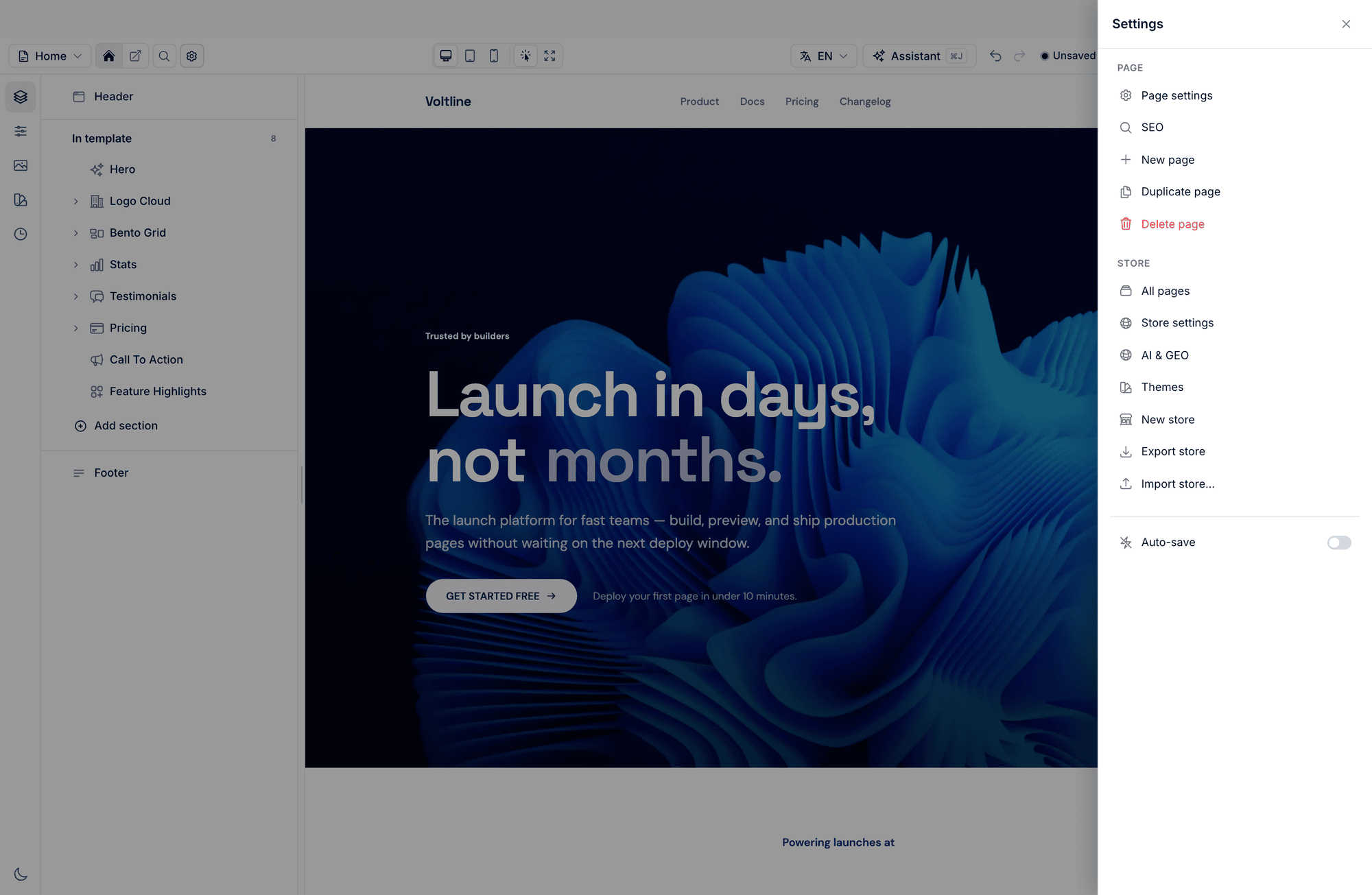
The topbar's Settings cog opens a slide-over with two groups.
Page — everything scoped to the page you're editing:
- Page settings — edit the current page's name, slug, type, and status. Change the slug and it offers to leave a
301behind (see SEO). - SEO — the per-page search and social metadata, with a live SERP preview.
- New page — also the last item of the page switcher. Type a name; the page address fills itself in (edit it if you like) and shows where the page will live. Add to the header menu is on by default and adds the page to every language of the header. The page opens as an empty draft ready for sections, and its header link stays hidden from visitors until you publish it. The page type defaults to Page and can be changed in Page settings.
- Duplicate page — copy the page and its content into a new draft.
- Delete page — remove the page. The action refuses to delete a store's last page, reassigns the homepage pointer if you delete the homepage, and redirects you to a sibling page so the editor never lands in an empty state.
Store — everything scoped to the whole site:
- All pages — a list of every page in the store, to jump between them.
- Store settings — a slide-over mirroring the full store form (name, slug, theme, languages, status, domain, subdomain, homepage). Saving flushes the site cache and refreshes the page/locale switchers in place.
- AI & GEO — the AI-crawler policy,
llms.txt, and IndexNow toggles. - Change theme — swap the site's theme.
- New store — create another store, seeded with a starter home page, and open it.
Every action runs through the same tenancy guard as the resources (TenancyResolver + the Site/Template scopes), so an operator can only ever act on stores they own.
Media gallery
The rail's third tab is the site's reusable image collection. Uploads made in section fields join it automatically; from the gallery you can search, import, edit metadata, see missing-alt warnings, select several images, and delete with an exact usage warning first.
Image fields open the same collection in a focused picker, with import and hover actions kept inside the editing flow. See the Media Library guide for the complete workflow, screenshots, deletion behaviour, and upgrade command.
Page history
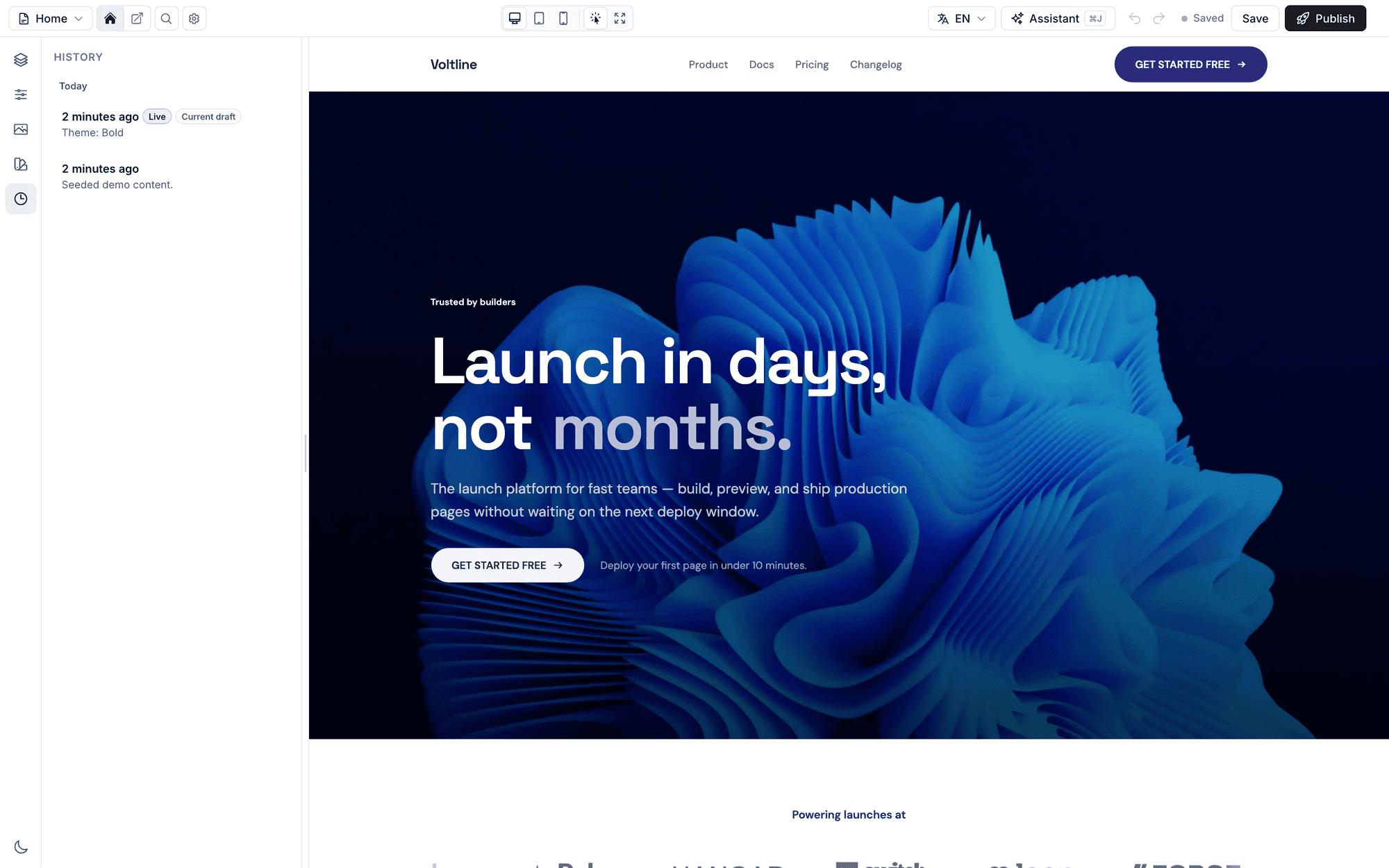
The clock icon in the rail lists every saved version of the page, newest first and grouped by day. Each row shows when it was saved, who saved it, and what changed against the version before it ("Hero, FAQ edited · Gallery added"). Live marks the published version and Current draft marks the one the editor holds.
Click a version to preview it read-only in the canvas; the arrows (or ↑ / ↓) step to older and newer versions. Save and Publish are paused while you preview, so you can't publish the draft by mistake while looking at something else.
Restore this version copies it into a new current draft. Nothing goes live until you publish, and nothing is deleted, so every earlier version stays in the list. The confirmation toast has an Undo that points the draft back where it was, as long as nobody has saved on top of the restore since.
Headers, footers and announcement bars are saved in place, so they have no history.
Live preview behaviour
- Section-level refresh from the server's draft state — no full reload.
- Debounced settings so typing doesn't fire a round-trip per keystroke.
- Autosave-to-draft after the
autosave_msdebounce (default 3000 ms), when the per-user autosave toggle is on. - Undo / redo with a ring buffer (
undo_depth, default 50 steps).
See Live Preview for how setting changes patch the iframe.
Keyboard shortcuts
Shortcuts (other than ⌘K) are inert while an input, textarea, select, or contenteditable is focused.
| Shortcut | Action |
|---|---|
⌘K / Ctrl+K | Command palette |
⌘S / Ctrl+S | Save draft |
⌘⇧P / Ctrl+Shift+P | Publish |
⌘Z / Ctrl+Z | Undo |
⌘⇧Z / Ctrl+Shift+Z | Redo |
/ | Add section |
? | Keyboard-shortcuts overlay |
Esc | Close the overlay / deselect the section — also exits focus mode and closes the mobile rail |
Configuration
The editor block in config/filamentcraft.php:
php
'editor' => [
    'enabled' => env('FILAMENTCRAFT_EDITOR_ENABLED', true),
    'autosave_ms' => 3000,
    'undo_depth' => 50,
    'inline_text' => env('FILAMENTCRAFT_EDITOR_INLINE_TEXT', true),
    'control_size' => 'comfortable',
    'devices' => [
        'desktop' => ['width' => 1440, 'height' => 900],
        'tablet' => ['width' => 820, 'height' => 1180],
        'mobile' => ['width' => 390, 'height' => 844],
    ],
],enabled— master switch;falsehides the editor page entirely (useful per environment viaFILAMENTCRAFT_EDITOR_ENABLED).autosave_ms— debounce (ms) before an edit is auto-saved to the draft.undo_depth— undo steps retained per template in the ring buffer.control_size— density of the settings-panel enum/toggle controls:compact,comfortable(default), orspacious.devices— preview viewport dimensions (px) per device shell.
The editor's accent color is set on the plugin; see Change the editor's accent color.
Next steps
- Regions: Header & Footer — the pinned site-wide section groups and how to configure which ones exist.
- Editor Internals — the post-message bus, the auto-scroll retry/ack protocol, the morph-safe sidebar resize, and where the editor's
.tscode lives.